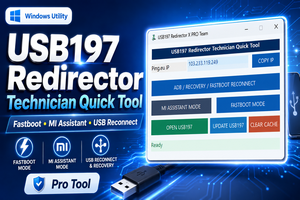
What is USB197 Redirector Technician Quick Tool? USB197 Redirector Technician Quick Tool is a lightweight Windows utility designed to make USB Redirector-related work easier and faster for mobile phone technicians and remote service professionals.
Instead of opening multiple programs, searching for different options, checking connection instructions, and repeating the same steps every time, technicians can use a single compact interface for their regular USB197 workflow.
The main purpose of this tool is simple: save time and make the technician workflow easier.
For technicians who regularly work with Android smartphones in different connection modes such as Fastboot Mode or Recovery/Assistant Mode, having the required information and USB197 controls available in one place can be very useful.
The utility has been designed with a clean and compact interface so that it can remain easy to use even on a technician’s busy Windows desktop.
Why USB197 Redirector Technician Quick Tool is Useful
Mobile servicing often requires switching between different device modes and utilities. A technician may need to connect a device, verify its USB connection, open USB Redirector, reconnect a session, or guide another person on how to put a phone into the required mode.
Doing all of this manually again and again can waste time.
The USB197 Redirector Technician Quick Tool brings commonly used options together in one interface.
It can be especially convenient for service centers, remote technicians, software technicians, and users who regularly work with Android USB connections.
The goal is not to make the workflow complicated with unnecessary features. Instead, the tool focuses on providing quick access to the options technicians need most often.
Clean and Technician-Friendly Interface
One of the important features of the USB197 Technician Quick Tool is its simple user interface.
A mobile technician may already have several applications running at the same time. Therefore, another large or complicated program is usually not ideal.
USB197 Redirector Technician Quick Tool uses a compact layout with clearly visible buttons so that important options can be accessed quickly.
The interface is designed to help reduce confusion for both experienced technicians and users who are working with USB197 for the first time.
Important connection instructions are also displayed in readable windows, making it easier to tell a customer or remote user exactly how a device should be connected.
Assistant Mode Connection Guide
For supported servicing workflows, a smartphone may need to be connected in Recovery or Assistant Mode.
The tool includes a quick Assistant Mode connection guide that technicians can follow or share with the person connecting the device.
How to Connect Assistant Mode
- Power the mobile phone completely OFF.
- Press Volume UP + Power Key.
- Enter Recovery / Assistant Mode.
- Connect the USB cable to the PC or laptop.
- Once connected, avoid unnecessary changes while the technician is performing the required operation.
Having these instructions available directly inside the technician utility saves time because there is no need to search for the button combination every time.
Exact button combinations can vary on some smartphone models, so always follow the manufacturer’s instructions when required.
Fastboot Mode Connection Guide
Fastboot Mode is another commonly used Android service mode.
The USB197 Redirector Technician Quick Tool also provides a Fastboot connection guide directly from the application.
How to Connect Fastboot Mode
- Power the device completely OFF.
- Press Volume DOWN + Power Key.
- Wait for the phone to enter Fastboot Mode / Bootloader Mode.
- Connect the USB cable to the PC or laptop.
- Keep the connection stable while the technician performs the required service operation.
This makes the tool particularly convenient when helping a customer remotely because connection instructions can be checked quickly without leaving the main utility.
Quick Access to USB197
The utility provides dedicated access to USB197 / USB Redirector-related functions from the main interface.
For technicians who use the service frequently, this means fewer unnecessary steps.
Instead of repeatedly searching Windows folders, shortcuts, or different applications, the technician can keep one quick utility ready on the desktop.
This type of centralized workflow is particularly helpful when working with multiple service requests during the day.
Reconnect and Connection Workflow
USB connections can occasionally require a reconnect due to cable changes, device reboots, driver initialization, network interruptions, or Windows USB detection.
A quick reconnect option can make the process easier.
Rather than restarting the entire workflow, technicians can use the available reconnect controls and then confirm that the device or USB Redirector session is available again.
For best results, technicians should always use a good-quality USB data cable and a stable USB port.
If Windows does not detect a smartphone correctly, checking the appropriate USB or manufacturer driver should be one of the first troubleshooting steps.
Lightweight Windows Utility
A useful technician tool should not make the computer unnecessarily slow.
USB197 Redirector Technician Quick Tool is designed as a compact utility for Windows systems. Its focused interface avoids unnecessary screens and keeps the commonly required options easy to reach.
This is especially useful on technician PCs where several other applications may already be running.
A lightweight design also makes the utility convenient to keep alongside other mobile servicing tools.
Benefits for Remote Mobile Technicians
Remote mobile servicing requires clear communication between the technician and the person who physically has the smartphone.
A common problem is that the remote user may not know how to enter Fastboot or Recovery/Assistant Mode.
With the connection instructions included in the USB197 Technician Quick Tool, the technician has a consistent reference for explaining the process.
This can help reduce incorrect connections and repeated troubleshooting.
Some of the main workflow benefits include:
- Quick USB197 access
- Easy Fastboot connection instructions
- Assistant/Recovery Mode instructions
- Cleaner technician workflow
- Quick reconnect access
- Compact Windows interface
- Fewer repeated manual steps
- Useful for local and authorized remote servicing
Who Should Use USB197 Redirector Technician Quick Tool?
This utility is mainly intended for people who regularly handle mobile device servicing.
It can be useful for:
- Mobile software technicians
- Smartphone service centers
- Android technicians
- Remote support professionals
- USB Redirector users
- Technicians working with Fastboot devices
- Technicians assisting users with Recovery/Assistant Mode connections
Users should always operate the tool only on devices they own or have permission to service.
Tips for a Stable USB197 Connection
For a smooth technician workflow, the USB connection itself must be reliable.
Always try to use the original phone cable or a high-quality USB data cable. Some inexpensive cables support charging only and cannot properly transfer USB data.
It is also recommended to connect the phone directly to the computer whenever possible rather than using an unstable USB hub.
If the device is not detected, check Windows Device Manager and verify that the correct drivers are installed.
When changing between Android modes, remember that Windows may detect the same phone as a different USB device. For example, normal Android mode and Fastboot Mode can use different drivers.
A stable internet connection is also recommended when USB redirection is being used as part of an authorized remote servicing workflow.
Why Choose the USB197 Technician Quick Tool?
The biggest advantage of the USB197 Redirector Technician Quick Tool is convenience.
It does not try to replace every mobile servicing application. Instead, it provides technicians with a quicker way to access the USB197 workflow and important device connection information.
For someone who performs similar USB connection steps several times every day, even small improvements can save significant time.
The combination of a compact interface, Fastboot instructions, Assistant Mode instructions, reconnect options, and USB197 access makes it a practical companion utility for technicians.
Frequently Asked Questions
Is USB197 Redirector Technician Quick Tool for Windows?
Yes. The utility is designed for technicians working on Windows PCs or laptops.
Does it support Fastboot Mode?
The tool includes a clear Fastboot Mode connection guide to help technicians and users connect supported Android phones correctly.
Does it include Assistant Mode instructions?
Yes. Recovery/Assistant Mode connection instructions are available so users can quickly understand the required connection process.
Why is my phone not detected?
Check the USB cable, USB port and required Windows drivers. Also confirm that the smartphone is actually in the correct mode required for your workflow.
Can I use a charging cable?
A charging-only cable may not work. Use a USB cable that supports data transfer.
Is this tool suitable for mobile technicians?
Yes. It is specifically designed to make common USB197 and device-connection steps easier for technician workflows.
Can it be used for remote servicing?
It can be useful as part of an authorized remote-support workflow, provided the technician has permission from the device owner and follows applicable policies and laws.
Final Words
USB197 Redirector Technician Quick Tool is a useful companion utility for technicians who want a cleaner and faster USB197 workflow.
By keeping important features and connection guides together, the tool reduces the need to repeatedly search for instructions or manually navigate through multiple steps.
Whether you regularly work with USB197 Redirector, Fastboot Mode, or Recovery/Assistant Mode, the utility can help make your daily technician workflow more organized.
For the latest mobile servicing tools, USB utilities, drivers, tutorials and technician updates, keep visiting GSMxR.com.
Download USB197 Redirector Technician Quick Tool from GSMxR.com and simplify your daily mobile service workflow.